
Screenshots
glimpse-shot freezes the screen, lets you mark it up and then copies or saves the result. Every option is in the command reference, and the defaults it starts with are under [screenshot].
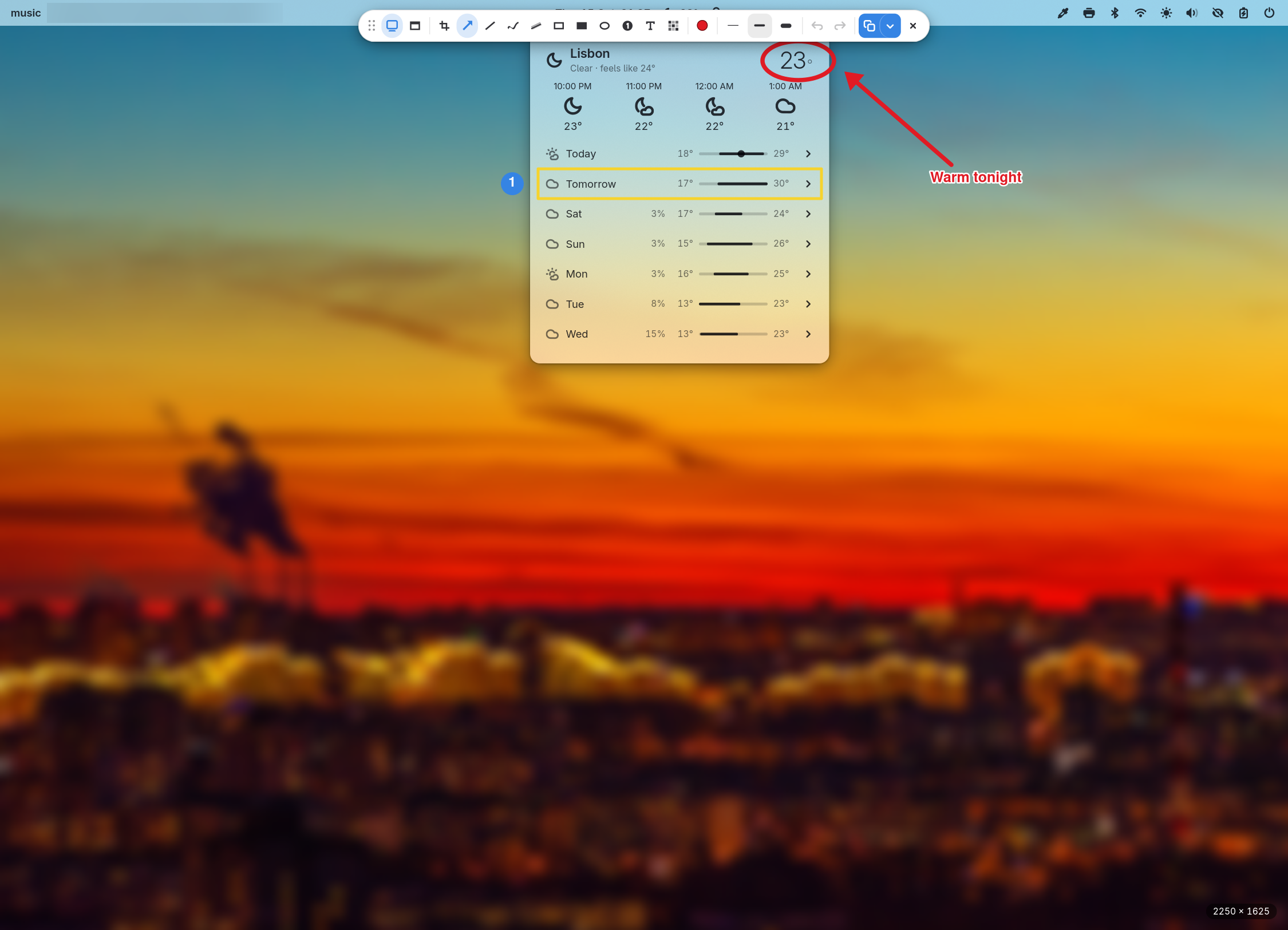
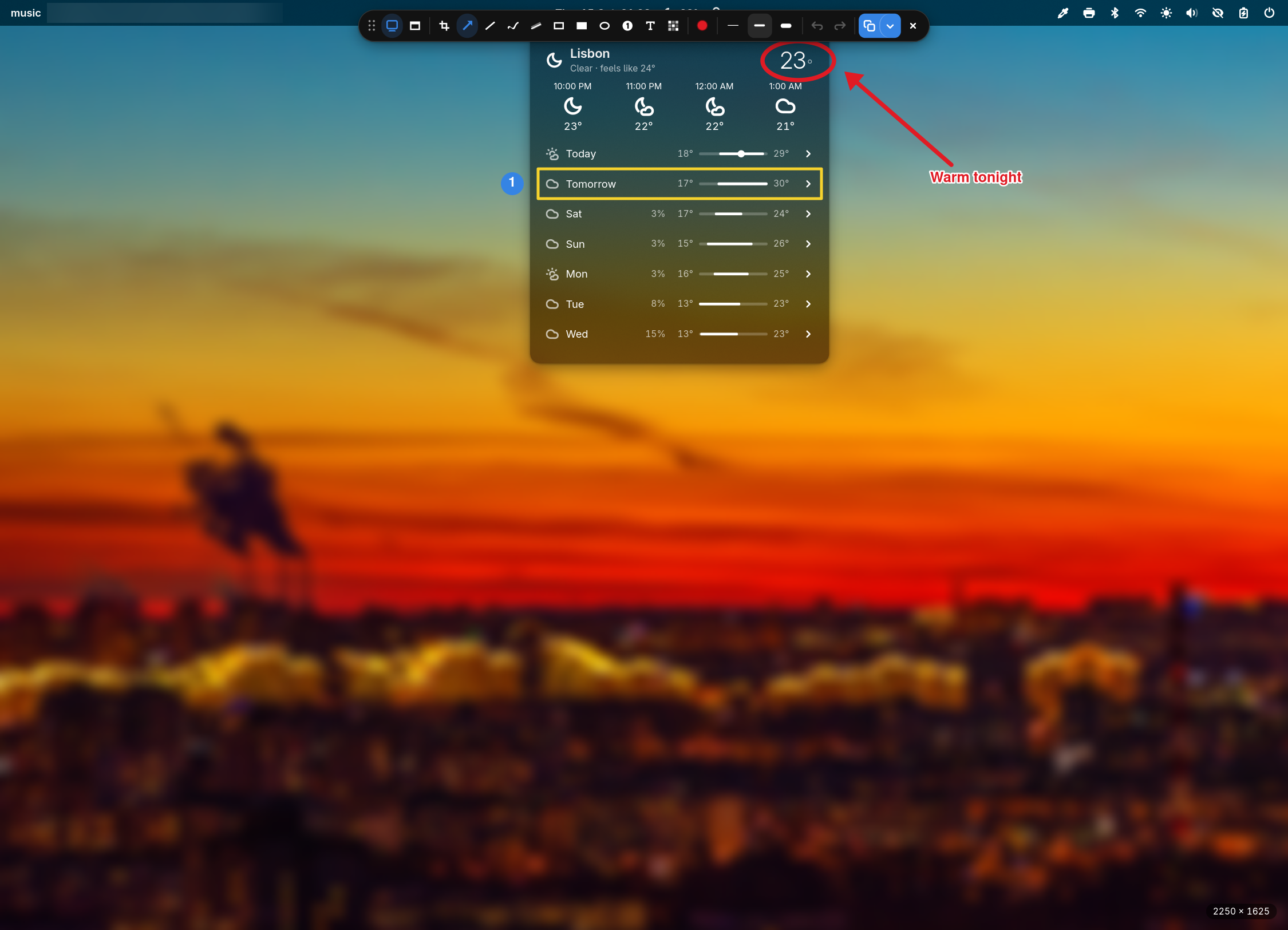
Take a screenshot
| Run | To |
|---|---|
glimpse-shot --screen | freeze the screen you are on and mark it up |
glimpse-shot --region | drag a rectangle, then mark it up |
glimpse-shot --window | click a window, then mark it up |
glimpse-shot --screen --delay 5 | count down five seconds first, to catch a menu or tooltip |
glimpse-shot | open the screenshot app and choose there |
glimpse-shot picture.png | mark up a picture you already have |
glimpse-shot annotate --pick | choose an image to mark up |
The screen freezes the moment the screenshot is taken, so a video or a closing menu stays put while you work. The delay goes up to 60 seconds.
Mark it up
Pick a tool from the bar at the top, or press the letter shown in its tooltip: arrows, boxes, ovals, numbered steps, text, a highlighter, a pen, crop, and blur for anything private. 1 to 5 switch the color, [ and ] the thickness, and Ctrl+Z undoes the last mark.
Copy or save it
| Press | To |
|---|---|
| Enter | copy the picture and close |
| Shift+Enter | save it and close |
| Ctrl+C | copy it and keep editing |
| Ctrl+S | save it and keep editing |
| Ctrl+Shift+S | choose where to save it |
| Ctrl+E | move it into a normal window to keep working |
| Esc | close without saving |
Saved pictures go to Screenshots inside your Pictures folder, named after the time they were taken, for example Screenshot from 2026-10-15 21-19-04.png. Change the folder or the name in the app's preferences or in [screenshot], or pass -o to save one picture somewhere else.
Screenshots other apps ask for
When an app asks the system for a screenshot, for example a chat app's screenshot button, the same editor usually opens, with a banner naming the app that asked. Mark it up if you like, then press Enter to hand it over or Esc to refuse. An app you already allowed to take screenshots without asking gets its picture straight away, with no editor.
Use it in scripts
glimpse-shot capture takes the screenshot straight away and shows nothing:
# Copy the screen you are on, no file
glimpse-shot capture --copy --no-save

# Save the focused window
glimpse-shot capture --window -o window.png

# Drag a rectangle with slurp and pipe the PNG on, here to ImageMagick
glimpse-shot capture --region "$(slurp)" -o - | magick - -resize 50% half.png
glimpse-shot list --json prints every screen and window with its name and id, and its position when the compositor reports one, so a script can pick its target first. --region, --window, --scale logical and list ask your compositor for that layout, so they need a compositor glimpse supports; on any other, name the screen with --screen NAME.
Under capture, --annotate draws marks without opening the editor. The marks are a JSON list, and their coordinates are pixels of the captured picture, counted from its top-left corner:
glimpse-shot capture --window --copy --no-save --annotate - <<'EOF'
[{"kind": "blur", "x": 40, "y": 12, "width": 300, "height": 24},
 {"kind": "oval", "x": 500, "y": 200, "width": 220, "height": 60, "color": "red", "stroke": 3}]
EOF
Add --json to get a description of the result: the saved path, whether it was copied, the picture's size and every mark on it. -o - and --json both write to standard output, so use one or the other.
| Exit code | Meaning |
|---|---|
| 0 | saved, copied or written out |
| 1 | failed, including a mark list that does not parse |
| 2 | a command or option was used wrongly |
| 3 | the configuration is broken |
| 4 | you closed the editor without saving or copying |
| 5 | the screen or window was not found |
| 7 | nobody answered before --timeout ran out |
Use it with AI agents
glimpse-shot prime prints a guide written for agents: every command, the mark format, the result object and the exit codes. Point your agent at it once and it can take screenshots on its own.
To show an agent your screen, let it run capture. --scale logical saves the picture at the size you see rather than at full resolution, which costs the model fewer tokens. Saving under $XDG_RUNTIME_DIR keeps these pictures out of your Pictures folder, which may be synced:
glimpse-shot capture --scale logical -o "$XDG_RUNTIME_DIR/screen.png"An agent can also ask you to point something out. The editor opens with its question as a banner; you draw on the screen and press Enter, and the agent reads your marks back:
glimpse-shot --screen --prompt "Circle the button that does nothing" --timeout 60 --json \
  | jq '.annotations'
The marks come back in the same format --annotate takes, so the agent can draw its own answer over the same screen.